Posts

Showing posts with the label Azure

PowerShell: How can I list/document all the items in my azure subscription?

The following script will create an Excel file with each Resource Group as a tab. First, I created a password file to reference from the script (no passwords in clear text please) "xxxx" | ConvertTo-SecureString -AsPlainText -Force | ConvertFrom-SecureString | Out-File "C:\Temp\Password.txt"  Here is the function - it will create seperate CSV files per resource group and then merge them intoa a single Excel file at the end. BTW, you may want to change the hard coded directories, username and filenames as required..... enjoy # create a function to merge the csv files we have created Function Merge-CSVFiles  {                  Param(                                  $CSVPath = "C:\csv\", ## Soruce CSV Folder                                ...

Azure: Why is my blob 0KB when I move it?

I was archiving documents in Blob Storage and found that the target files were always being rendered as 0 KB. I was using the following code: var storageAccount = CloudStorageAccount.Parse("CONNECTIONSTRING"); var blobContainer = storageAccount.CreateCloudBlobClient().GetContainerReference("container"); var blob = blobContainer.GetBlobReference("myfilename") // Get the source as a stream Stream stream = new MemoryStream(); blob.DownloadToStream(stream); var destBlob = blobContainer.GetBlockBlobReference(blob.Name); destBlob.UploadFromStream(stream); blob.Delete(); The code should work, except for the fact that the stream needs to be repointed to the start for the download to work. blob.DownloadToStream(stream); (from above) stream.Position = 0; And now the copy/move works

Azure Blob Storage: How can I quickly read a text file?

My current project has the requirement to read a large text file from blob storage and then process the contents. Getting the file is easy: var storageAccount = CloudStorageAccount.Parse(CONNECTIONSTRING); var container = storageAccount.CreateCloudBlobClient().GetContainerReference(containerName); var blob =  container.GetBlobReference(fileName); And the data can be easily read: Stream stream = new MemoryStream(); blob.DownloadToStream(stream); stream.Position = 0; string text = ""; using (StreamReader reader = new StreamReader(stream)) { text = reader.ReadToEnd(); } var lines = text.Split(new string[] { Environment.NewLine }, StringSplitOptions.None); The real time saver came when I had to process the contents. A traditional IEnumerable was too slow, but luckily Parallel saved the day: Parallel.For(0, lines.Length - 1, i => { DoSomethingWithTheRow(lines[i]); }); Its lightening fast. A word of warning: I passed a generic into the ...

Azure API: A route named 'swagger_docs' is already in the route collection. Route names must be unique

Image
While creating some PoC APIs, I encountered this little gem. Fortunately, a simple fix is available: In the 'Settings' tab of the 'Publish' dialog, click 'Remove additional files at destination' (in the File Publish Options expander). You can then republish the API and the issue should be resolved.

Azure: How do I delete my function?

Image
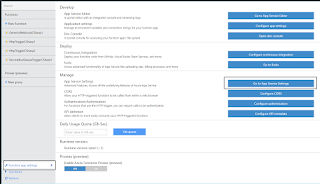
I have been playing with Azure functions (which are great), but there does not seem to be an intuitive way to delete them. The first option (which requires forethought) is to create its own Resource Group (with the associated storage accounts) and delete the RG. Easy - if you knew it was coming and planned for it. The other option is go into 'Function App Settings'  -> 'Go to App Service Settings'. You can then delete the app.

Azure Function: Call a web service and return the result as a class

My current project is using Azure Functions as action triggers. Thanks to some nifty work from the Visual Studio team, we now have a local development environment. The following POC function will call a Web API (configured through API Management) and convert the resultant JSON into a class object. 1. Create a 'Model' solution that stores the class to be used. I called my MyModel. My class is called ApiResult. namespace MyModel {     public class ApiResult     {         public string Message { get; set; }     } } 2. Create an API to invoke using MyModel; using System.Web.Http; namespace MyControllers {     public class MyController : ApiController     {         [System.Web.Http.HttpGet]         [System.Web.Http.Route("api/myapiendpoint")]         public ApiResult ValidateFile()         {       ...

Azure SQL Database: Cannot connect to XXXXX.database.windows.net

Image
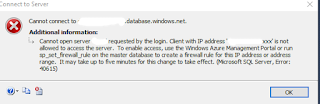
While creating an Azure POC, I create a new SQL Database and tried to connect via the online tools. I then received the following message: Fortunately, the resolution is very simple. Open the database and navigate to the Firewall Settings at the top of the Overview blade. Select 'Add client IP' to resolve the problem.

Azure API: Why does my API in the API Management Developer Portal not have a subscription key?

Image
I encountered this problem recently when trying to add an API to my API Management. I followed all the steps but my API execution complained that the subscription key was missing. The reason for the error is that my API was not associated to a Product. To fix this, 1. Open the Publisher Portal from 'Overview' option in the API Management blade 2. Navigate to the 'Products' tab and assign the API to a product 3. Now navigate to the Developer Portal and subscription key value is now set in the request header.

Azure: How do I create an MVC site to load files to BLOB storage?

I recently created a simple POC site to load files to blob storage containers in Azure. Here is how I achieved it. My code is based on the sample provided  here After creating a simple MVC web project, I added the following nuget packages: DropZone WindowsAzure.Storage Microsoft.WindowsAzure.ConfigurationManager The code is pretty simple: Here is Index.cshtml: @model List<string> <script src="~/Scripts/dropzone/dropzone.min.js"></script> <script src="~/Scripts/bootstrap.min.js"></script> <link href="~/Scripts/dropzone/dropzone.min.css" rel="stylesheet" /> <div class="jumbotron">     <h2>FILE UPLOAD</h2>     <form action="~/Home/Upload"           class="dropzone"           id="dropzoneJsForm"           style="background-color:#00BFFF"></form>         <button id="refresh" onc...